Step 1: Open the QRing App
-
Make sure the ring is powered on and Bluetooth is enabled.
-
Open the Herz app (QRing) on your phone.
You can also use the following links or scan the QR code below to directly access the app:

Step 2: Locate Your Device
-
Go to Profile or My Device in the app.
-
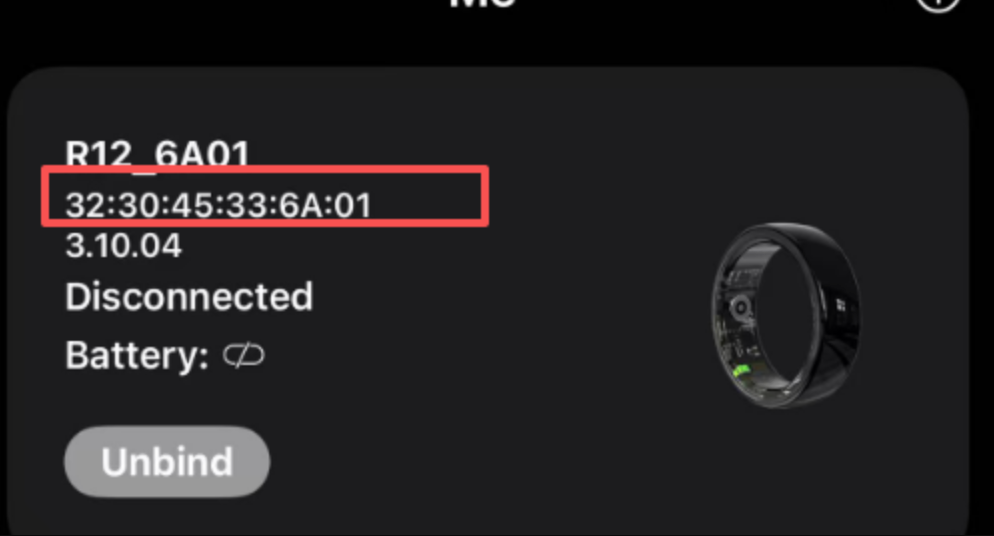
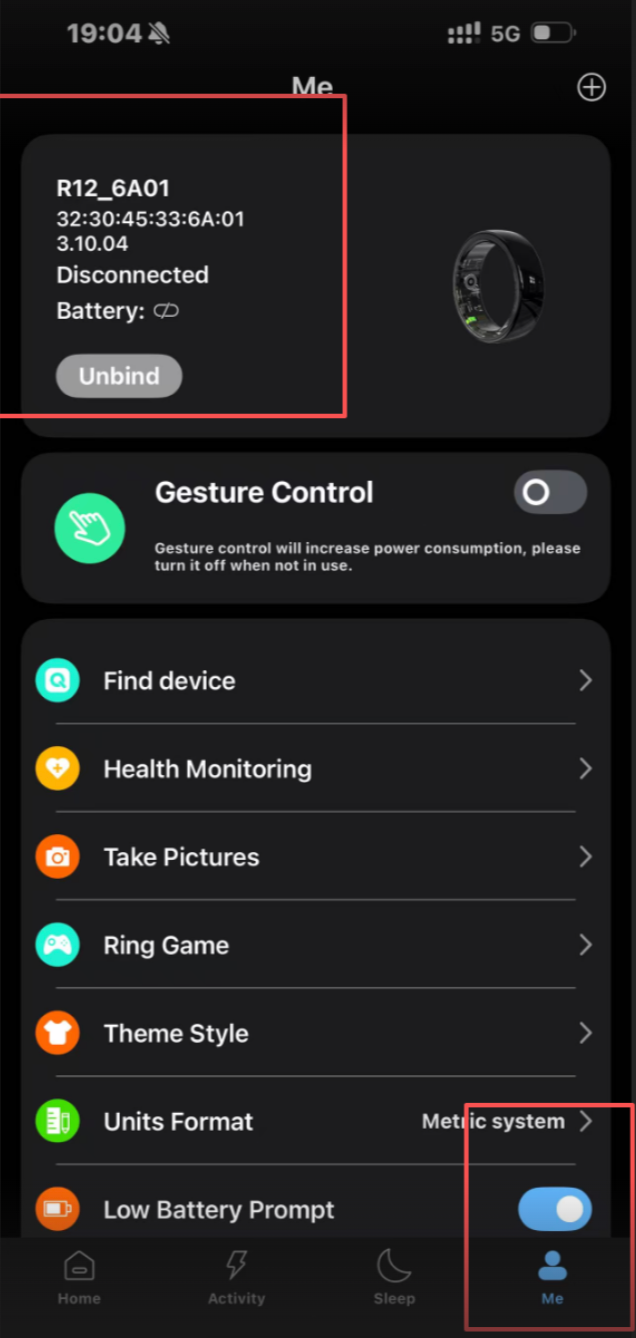
You will see a card for your Herz P1 Smart Ring as shown below:
Step 3: Check the Device ID and Battery
-
Device ID: Displayed as a series of numbers and letters (e.g., 32:30:45:33:6A:01) – highlighted in the screenshot above.
-
Battery Percentage: Shown under the “Battery” label. This indicates the current charge level.
Tip: If the battery icon shows empty or not visible, make sure the ring is connected.
Step 4: Additional Information
-
From this screen, you can also unbind the device if needed. Unbinding may help resolve connection or syncing issues, or if you plan to pair the ring with a new phone or account.
-
The same page may display firmware version and connection status.
Why You Need This Information
-
For pairing or re-pairing the device
-
To monitor battery level before charging
-
For troubleshooting
-
For warranty or device verification
Still need help? Create a support request with our customer service team and we'd be happy to help.